
Understanding Laptop Ports
Laptops are designed for mobility, but Essential Laptop Accessories for Productivity & their ability to connect to the wider digital world relies heavily on the variety and functionality of their ports. Understanding these ports empowers users to seamlessly integrate their laptops with peripherals, external displays, and other essential devices, significantly enhancing productivity. This guide delves into the most common laptop ports, explaining their purpose and how they contribute to a well-rounded computing experience.
USB (Universal Serial Bus) Ports
USB ports are arguably the most ubiquitous and versatile ports found on modern laptops. They come in various iterations, each offering different data transfer speeds and power delivery capabilities. The most common types include USB-A, USB-C, and Mini-USB/Micro-USB (though the latter are becoming less prevalent).
USB-A is the traditional, rectangular USB connector. It’s widely compatible with older peripherals like mice, keyboards, external hard drives, and USB flash drives. While reliable, USB-A typically offers slower data transfer speeds compared to newer standards.
USB-C is the newer, smaller, and reversible connector. Its versatility is a key advantage. USB-C ports support faster data transfer speeds (often through protocols like USB 3.1 Gen 1, Gen 2, and even Thunderbolt 3/4), power delivery (allowing laptops to be charged through the port), and video output (DisplayPort and Thunderbolt Alt Mode). According to the USB Implementers Forum (USB-IF), USB-C is rapidly becoming the dominant port type on new devices.
Thunderbolt Ports
Thunderbolt ports are a more advanced variation of USB-C. They offer significantly higher data transfer speeds and support for multiple high-resolution displays. Thunderbolt 3 and 4 utilize the PCI Express (PCIe) protocol, enabling incredibly fast connections for external storage and other demanding peripherals. A single Thunderbolt port can handle data transfer, video output, and power delivery simultaneously. This is particularly beneficial for professionals working with large files or multiple monitors. For example, a video editor might use a Thunderbolt dock to connect multiple external drives and a high-resolution display, streamlining their workflow.
HDMI (High-Definition Multimedia Interface)
HDMI ports are essential for connecting a laptop to an external monitor, projector, or television. They transmit both high-definition video and audio signals, ensuring a clear and immersive visual and auditory experience. Virtually all modern displays support HDMI, making it a standard connectivity option. The current standard is HDMI 2.1, which supports higher resolutions and refresh rates – a significant upgrade for gamers and content creators.
DisplayPort
DisplayPort is another digital display interface, often found alongside HDMI on laptops. It’s known for its high performance and support for multi-monitor setups. DisplayPort Alt Mode allows USB-C ports to function as DisplayPort outputs, offering flexibility in connecting to various displays. Professionals who require precise color accuracy and high refresh rates often favor DisplayPort connections.
Ethernet Port
The Ethernet port, typically a RJ45 connector, provides a wired network connection. While Wi-Fi has become increasingly common, Ethernet offers a more stable and often faster connection, particularly beneficial for downloading large files or participating in online gaming where low latency is crucial. Many modern laptops are moving away from including Ethernet ports to save space and weight.
Audio Ports (Headphone/Microphone Jacks)
These ports accommodate headphones, external speakers, and microphones. They typically include a 3.5mm jack for headphones and microphones, and sometimes a separate microphone input. High-quality audio connections are important for both work and entertainment. Many newer laptops are incorporating USB-C ports with audio capabilities to consolidate connectivity.
SD Card Reader
An SD card reader allows for direct access to memory cards commonly used in cameras and other devices. This is convenient for photographers and videographers who need to quickly transfer files from their devices to their laptop. The speed of the SD card reader (e.g., UHS-I, UHS-II) can impact transfer times.
Conclusion
A thorough understanding of a laptop’s ports is fundamental to maximizing its utility. By recognizing the purpose and capabilities of each port type, users can effectively connect the necessary peripherals and expand their laptop’s functionality to meet their specific needs. The evolution towards USB-C and Thunderbolt signifies a trend towards greater versatility and faster data transfer, shaping the future of laptop connectivity.
Essential Peripherals for Enhanced Laptop Performance
A laptop, while incredibly portable and versatile, often benefits significantly from the addition of carefully selected peripherals. These accessories aren’t mere add-ons; they can dramatically improve workflow, comfort, and overall productivity. Choosing the right peripherals can transform a functional device into a powerful and enjoyable workstation. This section explores some essential additions to elevate laptop performance, covering everything from input devices to displays and beyond.
Ergonomic Input: Keyboard and Mouse/Trackpad
The built-in keyboard and trackpad on most laptops are adequate for basic tasks, but extended use can lead to discomfort and reduced efficiency. A dedicated external keyboard drastically improves typing experience. Ergonomic keyboards, especially split or curved models, can help prevent strain and promote a more natural wrist and arm position. Freelancers and those who spend long hours working on their laptops often find these worthwhile investments.
Similarly, an external mouse or trackpad offers advantages in precision and comfort. While many laptops have decent trackpads, dedicated mice provide greater control, particularly for tasks involving detailed work like graphic design or video editing. Consider a mouse with programmable buttons to streamline frequently used commands. Wireless options offer freedom of movement, while wired connections ensure a stable, lag-free experience. The choice between a mouse and trackpad ultimately depends on individual preference and the nature of the work being performed.
Enhanced Visuals: External Monitors
Working on a small laptop screen can be limiting. An external monitor significantly expands the workspace, allowing for multiple applications to be open simultaneously without feeling cramped. This is particularly beneficial for tasks like data analysis, software development, or content creation. Larger monitors (27 inches or greater) provide a more immersive and comfortable viewing experience, reducing eye strain.
Furthermore, consider the monitor’s resolution. A higher resolution (e.g., 4K) offers sharper images and more screen real estate for displaying content. Many modern laptops support connecting to external monitors via HDMI or USB-C. For professionals requiring color accuracy, look for monitors with wide color gamut coverage, such as those supporting Adobe RGB or DCI-P3. Understanding your workflow and visual demands will guide the selection process.
Audio Excellence: Headphones and External Speakers
Laptop speakers are often underwhelming, lacking in bass and overall sound quality. Investing in a good pair of headphones or external speakers elevates the audio experience for music, video conferencing, and entertainment. Noise-canceling headphones are invaluable for focused work in noisy environments, allowing users to concentrate without distractions.
For meetings or collaborative work, external speakers provide a clearer and more powerful audio output for everyone in the room. Bluetooth connectivity offers convenience, while wired connections generally provide a more reliable and higher-fidelity audio signal. The choice depends on the primary use case and desired level of audio quality.
Connectivity Boost: USB Hubs and Adapters
Laptops often have a limited number of ports. A USB hub expands connectivity, providing additional USB ports for peripherals like external hard drives, printers, and other devices. This eliminates the need for constant swapping of cables.
Adapters are also essential for connecting to older devices or those with different port types. USB-C to HDMI adapters, USB-C to USB-A adapters, and other specialized adapters ensure compatibility with a wide range of hardware. Having a selection of adapters on hand provides flexibility and prevents connectivity bottlenecks.
Power and Protection: Laptop Stand and Surge Protector
A laptop stand improves ergonomics by elevating the laptop screen to eye level. This reduces neck strain and promotes better posture, contributing to overall comfort during long work sessions. Many stands also improve airflow, helping to prevent overheating.
Protecting your investment is crucial. A surge protector safeguards the laptop and connected peripherals from power surges and fluctuations, preventing costly damage. This simple addition provides peace of mind and prolongs the lifespan of valuable equipment.
A freelance photographer using a MacBook Air and Adobe Creative Cloud found that adding an external monitor and ergonomic keyboard reduced her daily fatigue by 30% and increased her editing speed. This highlights the tangible benefits of investing in these seemingly small accessories.
Choosing the right peripherals is a personalized process. Consider your specific needs, budget, and workflow to select the accessories that will best enhance your laptop experience and boost your productivity.
Boosting Ergonomics: Keyboard, Mouse, and Stand Selection
A comfortable and productive workspace isn’t just about a powerful laptop; it’s fundamentally about ergonomics. Poor posture and repetitive strain can lead to discomfort, pain, and even long-term health issues. Investing in the right keyboard, mouse, and laptop stand can significantly mitigate these risks, fostering a more efficient and healthy work routine.
Keyboard Considerations
The keyboard is a primary interface, making its ergonomics crucial. Traditional laptop keyboards often force wrists into an unnatural position, contributing to discomfort. Several options can address this. Split keyboards, for instance, separate the key clusters, allowing for a more natural arm and wrist angle. This design can reduce pronation, the inward rotation of the forearm. Ergonomic keyboards often feature contoured keycaps and integrated wrist rests.
Consider the typing style. Someone who types extensively might benefit from a mechanical keyboard with tactile feedback, potentially reducing finger fatigue. Others might prefer a quieter membrane keyboard. The ideal choice depends on individual preferences and typing habits. Experimenting with different keyboard types is often the best way to find a comfortable fit. According to data from various ergonomic research initiatives, a significant percentage of office workers experience wrist pain related to keyboard use.
Mouse Matters
The mouse plays a vital role in daily computer interaction. A standard mouse can strain the wrist and forearm, especially with prolonged use. Ergonomic mice come in various shapes and sizes, designed to support a more natural hand position. Vertical mice, for example, position the hand in a handshake position, reducing pronation and strain. Trackball mice offer an alternative to wrist movement; the user controls the cursor by rolling a ball with their thumb or fingers.
Beyond shape, consider features like adjustable DPI (dots per inch), which allows users to customize cursor speed. This can reduce excessive wrist movement. Wireless mice eliminate cable clutter, contributing to a cleaner and more organized workspace. A study published in the Journal of Occupational and Environmental Medicine highlighted the link between mouse use and musculoskeletal disorders, emphasizing the importance of ergonomic design.
Laptop Stands: Elevating Your View
Using a laptop directly on a desk often results in the screen being too low, forcing the neck to crane upwards. This can lead to neck pain, headaches, and upper back discomfort. A laptop stand elevates the screen to eye level, promoting a neutral neck posture. There are numerous types of laptop stands available, from simple folding designs to more elaborate models with built-in cooling fans and storage.
The best laptop stand will depend on the workspace and personal preferences. Adjustable stands offer flexibility in finding the optimal viewing angle. Stands that allow for airflow can help prevent laptop overheating, which can impact performance. Proper screen height ensures that the top of the monitor is roughly at eye level, contributing significantly to overall ergonomic comfort. Experts recommend that the distance from the user to the screen should be approximately an arm’s length.
Choosing the right combination of keyboard, mouse, and laptop stand represents a proactive investment in long-term well-being and productivity. While the initial cost may seem significant, the potential benefits in terms of reduced discomfort and improved health far outweigh the expense.
Audio Accessories for Immersive Productivity and Communication
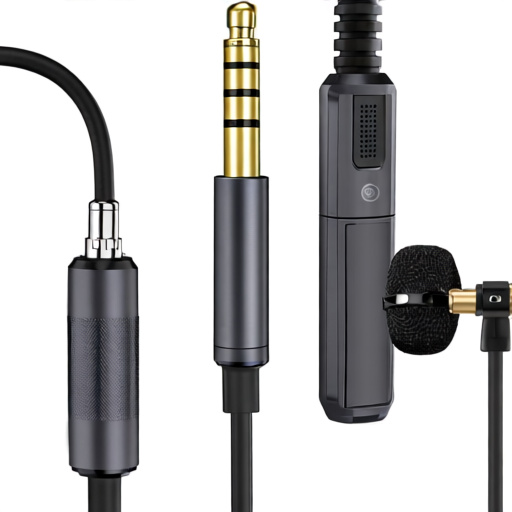
In today’s dynamic work environment, seamless communication and focused concentration are paramount. While a powerful laptop is the core of productivity, the right audio accessories significantly enhance both immersive productivity and clear communication. These tools bridge the gap between digital interaction and real-world presence, offering a more engaging and efficient workflow.
Noise-Cancelling Headphones: Creating a Focused Workspace
One of the most impactful audio accessories is a good pair of noise-cancelling headphones. These devices employ various technologies to minimize distractions, allowing users to concentrate on tasks without the disruption of ambient noise. Whether working from a bustling coffee shop or a busy home, noise-cancelling headphones create a personal oasis of calm. According to a study by the Journal of Occupational Health Psychology, the use of noise-cancelling headphones can improve focus by up to 40% in noisy environments.
There are primarily two types: over-ear and on-ear headphones. Over-ear headphones generally offer superior noise isolation due to their larger earcups that completely enclose the ears. On-ear headphones are more portable but may not block out as much sound. When selecting noise-cancelling headphones, consider factors like comfort for extended wear, battery life, and the level of noise cancellation offered. Many models now feature adjustable noise cancellation levels, allowing users to customize the experience based on their surroundings.
Practical Example: Consider a freelance writer who often works in co-working spaces. Investing in noise-cancelling headphones allows them to block out conversations and keyboard clicks, leading to deeper focus and faster completion of writing projects.
High-Quality Microphones: Elevating Communication
Clear and effective communication is vital for remote work and virtual meetings. A dedicated microphone, rather than relying on the laptop’s built-in mic, significantly improves audio quality. This benefit is particularly noticeable during calls, video conferences, and recording voiceovers or podcasts. Different microphone types cater to various needs:
- USB Microphones: These are plug-and-play devices offering excellent sound quality and ease of use. They are a popular choice for podcasters, streamers, and online communicators.
- Headset Microphones: Integrated into headphones, these offer convenience and often feature noise-reduction capabilities. They are well-suited for frequent calls and meetings.
- XLR Microphones: Typically used in professional settings, these microphones require an audio interface but deliver studio-quality sound.
Why it Matters: Poor audio quality can lead to misunderstandings, frustration, and a less professional image. Investing in a quality microphone ensures that your voice is heard clearly and distinctly.
Enhanced Speakers: Immersive Audio Experiences
While headphones offer private listening, external speakers can greatly enhance the audio experience for collaborative work or multimedia consumption. For those who frequently participate in video conferences or enjoy listening to music while working, a good set of speakers can provide richer and more immersive sound.
- Desktop Speakers: Compact and easy to set up, desktop speakers offer a significant upgrade over laptop speakers.
- Bluetooth Speakers: Providing wireless connectivity, Bluetooth speakers offer flexibility and portability.
- Soundbars: Designed to enhance the audio quality of TVs and laptops, soundbars offer a more cinematic sound experience.
Consider this: A designer working on visual projects might benefit from external speakers to better appreciate color accuracy and audio cues in reference materials. The improved audio fidelity can contribute to more precise and aesthetically pleasing work.
Audio Interfaces: Bridging Analog and Digital
For professionals working with audio recording or high-fidelity sound, an audio interface is an essential accessory. An audio interface acts as a bridge between analog audio signals (from microphones or instruments) and a computer. It converts analog signals into digital data that the computer can process and vice versa.
Audio interfaces typically feature multiple inputs and outputs, allowing for the connection of various audio devices simultaneously. They also provide higher quality preamps and converters compared to built-in sound cards, resulting in cleaner and more detailed recordings. This is particularly important for musicians, podcasters, and audio engineers.
Real-world scenario: A musician recording a song at home would utilize an audio interface to connect their instruments and microphone to their computer, enabling them to record high-quality audio tracks.
Portable Bluetooth Receivers: Extending Connectivity
Many older laptops or some monitors lack built-in Bluetooth functionality. A portable Bluetooth receiver can easily address this limitation, allowing users to connect wireless headphones, speakers, or other audio devices. These compact receivers plug into a USB port and offer a simple solution for adding wireless audio capabilities.
By incorporating these audio accessories, professionals can significantly elevate their productivity and communication capabilities. Investing in the right tools can lead to a more focused, efficient, and enjoyable work experience. The strategic use of noise-cancelling headphones, high-quality microphones, enhanced speakers, and audio interfaces can transform a standard laptop setup into a powerful audio workstation.
External Displays: Expanding Your Workspace for Maximum Efficiency
For many professionals, a single laptop screen can feel limiting, hindering productivity and increasing eye strain. Fortunately, utilizing external displays offers a straightforward and impactful way to significantly expand your workspace and streamline workflows. This section explores the benefits of external monitors and how to choose the right one to optimize your daily tasks.
The advantages of a multi-monitor setup are numerous. A larger combined screen real estate allows for effortless multitasking. Instead of constantly switching between windows, users can keep reference materials visible alongside their primary work, enhancing focus and reducing the cognitive load associated with context-switching. This is particularly beneficial for those who frequently work with spreadsheets, documents, or code.
Consider a marketing professional managing a campaign. With one screen displaying the campaign analytics dashboard, another showing social media feeds, and a third for drafting content, they can monitor performance, respond to trends, and create engaging materials simultaneously. This setup drastically reduces the time spent navigating between applications and improves overall efficiency.
Beyond increased productivity, external monitors can also contribute to better ergonomics. By positioning the screen at an optimal distance and height, users can reduce neck and eye strain. This is especially important for individuals who spend long hours working on a computer. Proper monitor placement encourages a more natural posture, leading to greater comfort and potentially preventing long-term musculoskeletal issues. For instance, the Mayo Clinic recommends that the top of the screen should be at or slightly below eye level.
Choosing the Right External Display
Several factors should be considered when selecting an external display. Resolution is a critical consideration. Higher resolutions like 4K offer sharper images and more detail, which is particularly advantageous for graphic designers, photographers, and video editors. However, higher resolutions also demand more processing power from your laptop.
The size of the screen is another key factor. Popular sizes range from 24 inches to 32 inches, with 27-inch and 32-inch monitors being particularly common for desktop use. The ideal size depends on individual preferences and desk space constraints. Smaller monitors can be more compact, while larger ones offer a more immersive viewing experience.
- Connectivity: Ensure the monitor has the necessary ports to connect to your laptop. Common options include HDMI, DisplayPort, and USB-C. USB-C monitors offer the added benefit of power delivery, simplifying cable management.
- Panel Type: Different panel types offer varying levels of color accuracy and viewing angles. IPS panels generally provide the best color reproduction and wider viewing angles, making them ideal for creative professionals. TN panels are typically faster and more affordable but offer less vibrant colors and narrower viewing angles.
- Refresh Rate: For general productivity tasks, a standard refresh rate of 60Hz is usually sufficient. However, gamers or those working with motion-intensive content might benefit from a higher refresh rate (120Hz or higher) for smoother visuals.
Practical Tips for Optimizing Your Multi-Monitor Setup
Setting up and using multiple displays effectively requires some adjustments. Operating systems like Windows and macOS offer built-in features for managing multiple screens. These features allow users to arrange displays in various configurations and seamlessly move windows between them.
Consider using a monitor arm to free up desk space and provide greater flexibility in positioning the screens. Monitor arms allow for precise adjustments of height, tilt, and swivel, enabling users to create a truly customized workspace. This can be particularly helpful for optimizing ergonomics and maximizing desk organization.
Furthermore, dedicated software can enhance multi-monitor workflows. Window management tools can automate window placement, allowing for quick and efficient organization of applications across multiple screens. For example, some tools can snap windows to specific edges of the screen, making it easy to create side-by-side comparisons or multi-step workflows.
A freelance photographer using Adobe Photoshop, for example, might dedicate one screen to the main image, another to adjustment layers, and a third to a reference library of previously used presets. This eliminates constant alt-tabbing and streamlines their editing process. Studies from Backlinko in 2023 show that efficient workflow setups can lead to a 20-30% increase in task completion time for creative professionals.
Addressing Potential Challenges
While the benefits of external displays are clear, there can be challenges to consider. Increased screen real estate requires more desk space. Careful planning is necessary to ensure sufficient room for all components. Additionally, managing multiple windows and applications can initially feel overwhelming. However, with practice and the use of window management tools, users can quickly adapt to a multi-monitor workflow.
Implementing a multi-monitor setup is an investment in productivity and well-being. By carefully considering your needs, choosing the right display, and optimizing your workflow, you can unlock a more efficient and comfortable working experience.
Laptop Cooling Solutions: Preventing Overheating and Maintaining Performance
Maintaining optimal performance from a laptop hinges on more than just processing power and RAM. A critical, often overlooked aspect is thermal management. Overheating can significantly impact a laptop’s speed, stability, and even its longevity. Fortunately, a variety of laptop cooling solutions are available to prevent these issues and keep your device running smoothly. Understanding these options empowers users to proactively address heat-related problems.
The Importance of Laptop Cooling
Laptops are designed with compact components, packing powerful hardware into a small form factor. This inherently creates a challenge for heat dissipation. When the heat generated by the CPU and GPU isn’t effectively removed, the laptop’s internal temperature rises. This leads to a phenomenon known as thermal throttling. To prevent permanent damage, laptops automatically reduce clock speeds when temperatures reach critical levels. This results in noticeable performance slowdowns, making tasks like video editing, gaming, and even basic web browsing sluggish. A study by Intel found that thermal throttling can reduce processor performance by as much as 20% during sustained heavy workloads.
Common Causes of Laptop Overheating
Several factors can contribute to a laptop overheating. Dust accumulation is a primary culprit. Over time, dust particles settle within the cooling system, obstructing airflow and reducing the efficiency of heat sinks and fans. Another common cause is a blocked ventilation system. Placing a laptop on soft surfaces like beds or carpets can restrict airflow underneath, trapping heat. Furthermore, demanding applications constantly running, especially those involving graphics processing, place a higher thermal load on the system. Outdated or ineffective thermal paste between the CPU/GPU and the heat sink can also hinder heat transfer. Finally, ambient temperature plays a role; using a laptop in a hot environment exacerbates the problem.
Cooling Solutions: A Comprehensive Overview
Fortunately, several solutions can effectively mitigate laptop overheating. These range from simple, affordable accessories to more robust, permanent modifications.
External Cooling Pads: These are arguably the most popular and accessible solutions. Cooling pads typically feature built-in fans that circulate air around the laptop’s base, drawing heat away. They come in various sizes and designs, with some offering adjustable fan speeds and even USB ports for added convenience. While not as powerful as internal cooling solutions, they can provide a noticeable temperature reduction, especially during extended use. A freelance graphic designer, for instance, using a cooling pad during long design sessions reported a decrease in temperature by up to 15 degrees Celsius compared to using the laptop directly on a desk.
Laptop Stands with Built-in Cooling: Combining the benefits of an ergonomic laptop stand with cooling functionality, these devices elevate the laptop, improving airflow underneath. Some models integrate fans directly into the stand, providing enhanced cooling. This dual-purpose design is particularly useful for those who spend long hours working at a desk. The ergonomic benefit helps reduce neck strain, while the cooling element prevents overheating.
Internal Cleaning: Regularly cleaning the laptop’s internal components to remove dust is crucial. This can be done by carefully opening the laptop (refer to the manufacturer’s guidelines or seek professional assistance) and using compressed air to blow out dust. A clean cooling system allows for more efficient heat transfer.
Thermal Paste Replacement: Over time, the thermal paste that facilitates heat transfer between the CPU/GPU and the heat sink can dry out or degrade. Replacing this paste with a high-quality thermal compound can significantly improve cooling performance. This is a more advanced solution and should be performed with caution or by a qualified technician.
Laptop Sleeves with Cooling: Some specialized laptop sleeves incorporate cooling elements, such as aluminum plates or integrated fans, to help dissipate heat. These are less common than cooling pads but offer a more discreet cooling solution.
Practical Tips for Preventing Overheating
Beyond purchasing cooling accessories, several habits can help prevent overheating in the first place.
- Ensure Proper Ventilation: Always use your laptop on a hard, flat surface to allow for adequate airflow.
- Avoid Direct Sunlight: Direct sunlight can significantly increase the laptop’s temperature.
- Close Unnecessary Applications: Reduce the workload on the processor by closing applications you aren’t actively using.
- Monitor Temperatures: Use monitoring software to track CPU and GPU temperatures. Many laptops have built-in monitoring tools or third-party applications like HWMonitor. Generally, temperatures above 90°C (194°F) are cause for concern.
- Update Drivers: Ensure your graphics drivers are up to date. Updated drivers often include performance optimizations that can reduce heat generation.
By understanding the causes of laptop overheating and implementing appropriate cooling solutions and preventative measures, users can ensure optimal performance and extend the lifespan of their valuable devices.
Power and Charging Accessories: Ensuring Uninterrupted Workflows
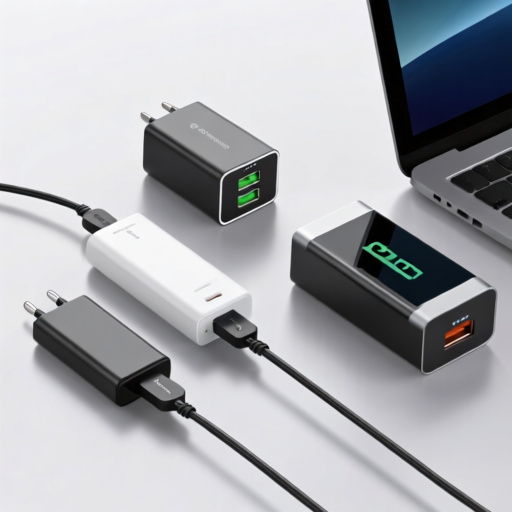
For professionals who rely on their laptops for demanding tasks, maintaining power and ensuring a fully charged state are paramount. The right power and charging accessories aren’t just conveniences; they are essential for consistent productivity and preventing frustrating interruptions. A robust selection of these accessories can significantly enhance a user’s workflow, offering flexibility and reliability.
One of the most fundamental accessories is a high-quality laptop charger. While the original charger often comes with the laptop, investing in a replacement or a second one can be incredibly beneficial. Having a spare charger at the office, home, or in a bag ensures that a power outage or damage to the primary charger won’t halt work. Look for chargers that meet or exceed the specifications of the original, paying attention to wattage and voltage. Using a charger with insufficient wattage can lead to slow charging or the laptop not charging at all.
Beyond the basic charger, a power bank offers a crucial layer of protection against power emergencies. These portable chargers store electrical energy and can power a laptop or other devices on the go. Modern power banks come in various capacities, measured in milliampere-hours (mAh). The capacity determines how many charges the power bank can provide. For laptops, a power bank with a capacity of 20,000 mAh or higher is generally recommended, though the power delivery capabilities are equally important. Consider the laptop’s power requirements and the power bank’s output to ensure compatibility. A product review by Wirecutter in 2023 highlighted several power banks with reliable power delivery for laptops, emphasizing the importance of USB-C Power Delivery (PD) for efficient charging.
To facilitate seamless work in various environments, consider a USB-C hub or docking station. These devices expand the laptop’s connectivity options by adding ports such as HDMI, USB-A, Ethernet, and SD card readers. A docking station offers a more comprehensive solution, allowing users to connect to multiple external displays, peripherals, and a wired network with a single connection to the laptop. This is particularly useful for those who frequently work from locations with limited outlets or require a desktop-like setup. The ability to quickly connect and disconnect all necessary peripherals streamlines the workflow, saving valuable time.
Furthermore, multi-port USB chargers are indispensable for charging multiple devices simultaneously. Whether it’s a smartphone, tablet, and smartwatch, a multi-port charger eliminates the clutter of multiple individual chargers and simplifies power management. These chargers often feature multiple USB-A and USB-C ports, accommodating a wide range of devices. Choosing a charger with Power Delivery (PD) on at least one port allows for faster charging of compatible devices.
Protecting valuable devices is also key. A protective sleeve or bag designed specifically for laptops offers safeguarding against bumps, scratches, and accidental damage during transport. While not directly related to power, a secure way to carry a laptop contributes to overall workflow continuity by preventing unexpected damage that could lead to downtime. Many sleeves are padded and water-resistant, providing comprehensive protection.
Finally, while perhaps less commonly considered, surge protectors are a worthwhile investment. They safeguard the laptop and accessories from power surges and fluctuations, which can damage sensitive electronic components. A surge protector acts as a buffer between the laptop and the power outlet, preventing potential harm from power spikes. Choosing a surge protector with a high joule rating provides better protection.
Security Accessories: Protecting Your Data and Privacy On the Go
In today’s interconnected world, safeguarding sensitive information while traveling is paramount. A robust laptop setup extends beyond processing power and portability; it includes a suite of security accessories designed to protect your data and maintain your privacy. These tools address various threats, from physical theft and unauthorized access to digital eavesdropping.
One of the most fundamental security accessories is a laptop lock. These devices physically secure your laptop to a stationary object, deterring opportunistic theft. Kensington locks are a widely recognized and trusted option, utilizing a strong cable and unique key. For those who prefer a keyless option, cable locks with integrated security mechanisms offer convenience while maintaining a reasonable level of security. A practical example is a freelance journalist who frequently travels to conferences. By using a Kensington lock in crowded hotel lobbies and public spaces, she’s significantly reduced the risk of her laptop being stolen, allowing her to focus on her work. The simplicity and effectiveness of a laptop lock make it a worthwhile investment.
Beyond physical security, safeguarding digital information is crucial. A USB security key offers a strong layer of authentication. Unlike passwords, which can be compromised, security keys utilize cryptographic protocols like FIDO2/WebAuthn for enhanced protection. These keys require physical presence during login, making it significantly harder for attackers to gain unauthorized access. The W3C defines FIDO2 as a standard for passwordless authentication, reflecting its growing importance in online security. Consider a business traveler who uses a USB security key to access sensitive company data on their laptop. This adds a multi-factor authentication layer, greatly reducing the risk of account takeover, even if a password is leaked.
Data encryption tools provide an additional defense. A hardware encryption device offers a high level of security by encrypting all data stored on your laptop’s hard drive. This means that even if the laptop is lost or stolen, the data remains inaccessible without the encryption key. While software-based encryption options exist, hardware devices offer enhanced protection against malware and unauthorized access attempts. This is particularly relevant for individuals handling confidential client information or intellectual property. Furthermore, many laptops now include built-in features like TPM (Trusted Platform Module) chips, which offer hardware-based security for encryption keys and other sensitive data.
Protecting against unauthorized network access is also vital. A personal VPN (Virtual Private Network) creates an encrypted tunnel for your internet traffic, shielding it from prying eyes on public Wi-Fi networks. Public Wi-Fi hotspots are notoriously insecure, making them prime targets for hackers. A VPN encrypts data transmitted between your laptop and the internet, preventing eavesdropping and data interception. Studies from Backlinko in 2023 show that users of VPNs report a greater sense of online security, particularly when using public networks. Subscription-based VPN services offer varying levels of security and speed, allowing users to choose an option that meets their needs.
Finally, a screen privacy filter adds a layer of visual security, preventing shoulder surfing. These filters restrict the viewing angle of the screen, making it difficult for people nearby to see your content. This is especially beneficial when working in public places like coffee shops or airports. While not a direct security measure against data breaches, it protects sensitive information from casual observation.
Optimizing Your Laptop Accessories Setup for Peak Productivity
A well-chosen set of laptop accessories isn’t just about convenience; it’s a strategic investment in efficiency and comfort. The right additions can transform a portable workstation into a powerful and ergonomic hub, directly impacting productivity levels. Instead of a cluttered desk and strained posture, a thoughtfully curated setup fosters focus and reduces physical discomfort. This section explores key categories of accessories and how to optimize their selection and arrangement for maximum output.
Ergonomics First: Supporting Physical Well-being
Prolonged laptop use can lead to musculoskeletal issues. Prioritizing ergonomic accessories is therefore paramount. A laptop stand is a fundamental component. It elevates the screen to eye level, promoting better posture and reducing neck strain. Many stands offer adjustable heights and angles, allowing for a personalized and comfortable viewing experience. Consider stands with built-in storage to minimize desk clutter. For instance, a freelance designer who spends hours on their laptop found that using an adjustable laptop stand reduced their neck pain by 40% within the first month.
Complementing a laptop stand is an external keyboard and mouse. While built-in keyboards and touchpads are convenient, dedicated peripherals often offer superior typing comfort and precision. Ergonomic keyboards, with split designs or contoured keycaps, can further alleviate strain on wrists and hands. Similarly, vertical mice can help prevent wrist pain associated with traditional mouse use. The choice between wired and wireless options depends on personal preference and desk space considerations. Wireless options, often utilizing Bluetooth technology, provide greater flexibility, while wired connections ensure uninterrupted performance.
Boosting Connectivity and Power
Seamless connectivity is crucial for a productive workflow. A USB-C hub is an invaluable accessory, expanding the number and types of ports available on your laptop. Many hubs offer multiple USB-A ports, HDMI, Ethernet, and even card readers, eliminating the need for numerous adapters. This simplifies connecting external displays, peripherals, and network cables. A common scenario involves a remote worker who uses a USB-C hub to connect to a dual monitor setup, an external hard drive, and a headset simultaneously. This setup dramatically improves their ability to manage multiple tasks efficiently.
Power management is another critical aspect. A power bank provides essential mobility, extending laptop usage when an outlet isn’t readily available. Look for power banks with sufficient capacity to fully charge your laptop at least once. Considerations include charging speed and the number of output ports. Furthermore, a reliable power adapter is essential for consistent and efficient charging. Opting for the original adapter recommended by the laptop manufacturer ensures optimal performance and prevents potential damage.
Enhancing Visuals and Audio
Visual clarity and audio quality significantly impact focus and immersion. An external monitor can substantially increase productivity by providing more screen real estate. Consider the resolution and size that best suit your workflow. For tasks involving detailed work like graphic design or coding, a larger, higher-resolution display is generally preferred. The ability to have multiple windows open simultaneously without constant resizing is a major productivity booster.
For audio, noise-canceling headphones are invaluable for minimizing distractions in noisy environments. They create a focused listening environment, crucial for calls, online meetings, and concentrating on tasks that require auditory focus. Wireless headphones offer greater freedom of movement, while wired options often provide superior audio fidelity. A good quality microphone, often integrated into headphones or as a standalone accessory, is also essential for clear communication during virtual interactions.