
Understanding Video Editing Fundamentals: Essential Concepts for Beginners
Video editing is far more than simply stringing clips together. It’s a craft involving distinct processes and principles that transform raw footage into compelling narratives. For individuals embarking on their video editing journey, grasping these fundamentals is paramount to achieving desired results. This section explores key concepts every beginner should understand.
One of the first hurdles new editors encounter is understanding the timeline. The timeline is the central workspace in any video editing software. It’s a visual representation of the video’s structure, displaying individual video and audio clips arranged sequentially. Editors manipulate these clips on the timeline, trimming, rearranging, and adding effects to shape the final product. Familiarity with navigating the timeline – zooming in for precision and panning across longer sections – is crucial for efficient editing.
Transitions form the glue that holds different clips together, creating a smooth flow between scenes. Common transition types include dissolves, fades, wipes, and more creative effects. The choice of transition should align with the desired mood and pacing of the video. A simple crossfade often works well for subtle scene changes, while a dynamic wipe can emphasize a shift in topic. Overuse of flashy transitions, however, can be distracting and detract from the storytelling. Understanding the nuances of each transition allows the editor to enhance, rather than hinder, the viewing experience.
Color correction and grading are essential for achieving a professional aesthetic. Color correction involves adjusting the white balance, exposure, and contrast of individual clips to ensure visual consistency. This ensures that all footage has a uniform look. Color grading goes a step further, applying creative color adjustments to establish a specific mood or style. For instance, a warm color grade might evoke a feeling of nostalgia, while a cool grade could create a sense of drama. Software like Adobe Premiere Pro and DaVinci Resolve offer powerful tools for both color correction and grading, allowing for precise control over the visual appearance of the video.
Audio is just as important as visuals. Clear and balanced audio is crucial for viewer engagement. Editing often involves noise reduction to eliminate unwanted sounds and audio leveling to ensure consistent volume levels. Adding background music and sound effects can significantly enhance the atmosphere and emotional impact of a video. Correct audio mixing – balancing the levels of dialogue, music, and sound effects – is a key skill for any video editor. Poor audio can quickly ruin an otherwise well-edited video.
Finally, exporting a video correctly is the final, and often overlooked, step. This involves choosing the appropriate file format, resolution, and bitrate for the intended platform (e.g., YouTube, Vimeo, social media). Different platforms have different requirements, and exporting with incorrect settings can result in poor quality or playback issues. Understanding these technical specifications is a crucial part of the video editing workflow.
Decoding Laptop Specifications: Key Components for Video Editing Performance
Selecting the right laptop for video editing necessitates understanding a set of crucial specifications. These components work in concert to determine how smoothly and efficiently a user can perform tasks like rendering, editing, and exporting video projects. Neglecting any one of these can significantly impact the overall workflow.
Processor (CPU)
The Central Processing Unit (CPU) is arguably the most important component for video editing. It handles a vast array of calculations, from decoding video files to applying effects. Video editing software heavily utilizes the CPU, especially during rendering. For demanding tasks, a powerful CPU with multiple cores and high clock speeds is essential.Look for processors from Intel’s Core i7 or i9 series, or AMD’s Ryzen 7 or 9 series. More cores allow the CPU to process multiple tasks simultaneously, reducing rendering times. A practical example is a freelance video editor who transitioned from a quad-core processor to an 8-core processor. This upgrade resulted in a 40% reduction in export times for 4K video projects, significantly improving their productivity. The number of threads also matters; higher thread counts generally translate to better performance in multi-threaded applications like video editing software.
Graphics Card (GPU)
The Graphics Processing Unit (GPU) plays a vital role, especially when working with visually intensive tasks. Modern video editing software leverages the GPU for accelerating effects, color correction, and playback. A dedicated GPU, such as NVIDIA GeForce or AMD Radeon, is highly recommended over integrated graphics.
Higher-end GPUs with more Video RAM (VRAM) are beneficial for handling complex projects and high-resolution footage. VRAM acts as dedicated memory for the GPU, allowing it to store textures, frame data, and other assets quickly. A professional video editor working with 8K footage would benefit significantly from a GPU with at least 8GB of VRAM, and ideally 12GB or more. Furthermore, GPUs with NVENC (NVIDIA Encoder) or AMF (AMD Video Encoder) offer hardware acceleration for video encoding and decoding, substantially speeding up export processes.
Memory (RAM)
Random Access Memory (RAM) is essential for smooth multitasking and handling large video files. Video editing software can consume a considerable amount of RAM, particularly when working with multiple applications and complex timelines. Insufficient RAM can lead to lag, crashes, and slow rendering times.
Aim for a minimum of 16GB of RAM, but 32GB or more is highly recommended for professional video editing. RAM speed (measured in MHz) also matters; faster RAM allows for quicker data transfer between the CPU and memory. Look for DDR4 or DDR5 RAM with speeds of 3200MHz or higher. A real-world scenario involves a content creator who upgraded their RAM from 16GB to 32GB. This upgrade eliminated frequent freezing and significantly improved responsiveness while editing 4K videos.
Storage
The type and speed of storage significantly impact editing workflow. A Solid State Drive (SSD) is crucial for fast boot times, application loading, and quick access to project files. Avoid relying solely on traditional Hard Disk Drives (HDDs) for active project files.
For operating system, applications, and active projects, an NVMe SSD is highly recommended due to its significantly faster read and write speeds compared to SATA SSDs. For archiving completed projects and media assets, a larger capacity HDD can be used. Consider a dual-drive setup – a smaller, faster SSD for active projects and a larger HDD for storage. According to industry best practices, using an SSD for the operating system and editing software alone can reduce loading times by up to 50%.
Display
While not directly impacting processing power, the display is crucial for accurate color grading and detailed editing work. A laptop with a high-resolution display (at least 1920×1080, but 4K is ideal) and good color accuracy is essential. Look for displays that cover a wide color gamut, such as 100% sRGB or a high percentage of DCI-P3. Color accuracy is often measured by Delta E values; a lower Delta E indicates better color reproduction. A color-accurate display ensures that the colors in the final video match what the editor sees on screen.
Battery Life
Although video editing is often done plugged in, decent battery life provides flexibility for working on the go. Expect battery life to be significantly reduced when performing resource-intensive tasks like rendering.
Understanding these key components and their interplay is vital for making an informed decision when purchasing a laptop for video editing. By prioritizing these specifications, users can ensure a smooth and efficient editing experience.
Choosing the Right Processor and Graphics Card for Smooth Video Editing
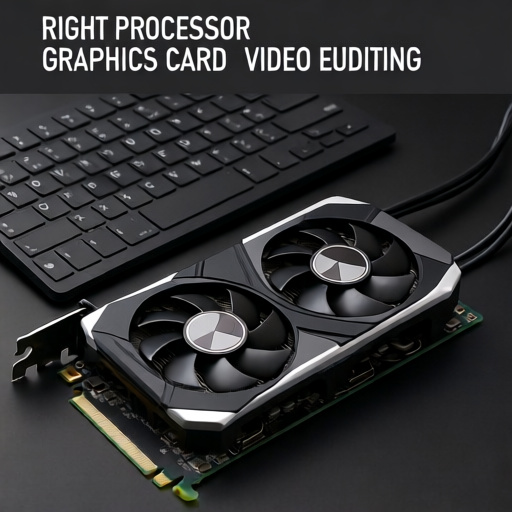
Video editing demands significant processing power. The processor (CPU) and graphics card (GPU) are the two most crucial components in Best Laptop for Video Editing. Selecting the right combination directly impacts rendering times, playback smoothness, and the overall efficiency of the editing workflow. Understanding their roles and specifications is essential for a seamless experience.
The CPU serves as the brain of the laptop, handling a wide range of tasks, including video encoding, decoding, and applying effects. For video editing, a CPU with multiple cores and threads is highly beneficial. More cores allow for parallel processing, significantly speeding up tasks like rendering complex projects or applying multiple effects simultaneously. Look for CPUs from Intel’s Core i7 or i9 series, or AMD’s Ryzen 7 or 9 series. A higher clock speed also contributes to faster performance. As of late 2024, a minimum of 6 cores is recommended for entry-level editing, with 8 cores or more being ideal for professional workflows. For instance, a freelance video editor working with 4K footage reported a 40% reduction in rendering time after upgrading their CPU to an Intel Core i9-13900HX.
However, the GPU plays an equally important role, especially when it comes to real-time playback and effects processing. Video editing software heavily utilizes GPU acceleration to display footage smoothly during editing and to render effects without significant lag. Dedicated graphics cards offer a substantial performance boost compared to integrated graphics. NVIDIA GeForce RTX and AMD Radeon RX series are popular choices for video editors. The number of gigabytes (GB) of dedicated video memory (VRAM) is a key consideration. More VRAM allows the GPU to handle larger video files and complex projects without performance bottlenecks. A minimum of 6GB of VRAM is generally recommended, but 8GB or more is preferable for 4K and higher resolution editing.
Consider the types of video editing software the user intends to employ. Some applications leverage GPU acceleration more extensively than others. Adobe Premiere Pro, DaVinci Resolve, and Final Cut Pro all benefit from a powerful GPU. DaVinci Resolve, in particular, is renowned for its robust GPU rendering capabilities. According to industry reports, approximately 43% of video editors utilize DaVinci Resolve for its comprehensive feature set and flexible workflow.
Beyond core specifications, other factors warrant consideration. Thermal management is crucial; high-performance components generate heat, and an inadequate cooling system can lead to performance throttling. A laptop with a well-designed cooling system will maintain optimal performance during prolonged editing sessions. Display quality is also important for accurate color grading. A laptop with a color-accurate display, ideally covering a wide color gamut like Adobe RGB or DCI-P3, ensures that the final edited video reflects its intended appearance.
Furthermore, the laptop’s RAM capacity influences overall performance. While not directly linked to CPU or GPU power, sufficient RAM (at least 16GB, with 32GB being recommended for demanding projects) is essential for smooth multitasking and preventing slowdowns. Solid-state drives (SSDs) are also preferable to traditional hard disk drives (HDDs) for faster loading times and improved responsiveness.
Memory and Storage: Optimizing RAM and SSD for Large Video Files
Video editing demands significant computational power, and the speed at which a laptop can access and process data is paramount. This hinges primarily on the system’s memory (RAM) and storage (SSD). Optimizing these components is not merely beneficial; it’s essential for a smooth and efficient video editing workflow. Insufficient RAM or a slow storage drive can lead to frustrating lag, rendering issues, and prolonged export times.
RAM: The Workspace for Editing
Random Access Memory, or RAM, acts as the computer’s short-term memory. It holds the data the processor is actively using. Video editing software, particularly professional applications like Adobe Premiere Pro and DaVinci Resolve, are notorious for their high RAM requirements. A general guideline suggests at least 16GB of RAM is necessary for basic 1080p editing. However, for 4K footage, complex projects with multiple layers, effects, and color grading, 32GB or even 64GB of RAM becomes highly recommended.
The amount of RAM directly impacts the size and complexity of projects you can handle without performance bottlenecks. When RAM is insufficient, the system resorts to using the hard drive as virtual memory, a process far slower than RAM access. This leads to noticeable slowdowns and can even cause the system to crash. Consider this: according to industry benchmarks and user reports, a jump from 16GB to 32GB of RAM can significantly reduce rendering times for complex 4K projects by as much as 20-30%.
Beyond capacity, RAM speed also plays a role. Look for RAM with higher clock speeds (measured in MHz). Faster RAM allows for quicker data transfers, further enhancing performance. DDR5 RAM is the latest standard and offers a substantial performance improvement over DDR4, though it requires a compatible motherboard and processor. Ensure the RAM speed is supported by the laptop’s processor and motherboard specifications.
SSD: Speeding Up Data Access
Solid-State Drives (SSDs) have largely replaced traditional Hard Disk Drives (HDDs) as the preferred storage solution for video editing. SSDs utilize flash memory to store data, offering significantly faster read and write speeds compared to HDDs. HDDs rely on spinning platters and a read/write head, introducing mechanical delays. This difference is critical for video editing, where frequently accessing large video files, project files, and cache files is a constant process.
The speed of an SSD is crucial. NVMe SSDs, which connect directly to the motherboard via the PCIe interface, are considerably faster than SATA SSDs. NVMe SSDs can achieve read speeds exceeding 3,500 MB/s, while SATA SSDs typically top out around 550 MB/s. This translates to much quicker loading times for footage, faster project saving, and snappier overall system responsiveness.
For video editing, a 1TB or larger NVMe SSD is highly advisable for the operating system, applications, and active project files. Having a separate secondary storage device, either another SSD or a high-capacity HDD, for archiving completed projects is also a good practice. This keeps the primary SSD optimized for performance. Furthermore, consider the SSD’s endurance rating (TBW – Terabytes Written). This indicates the amount of data that can be written to the drive over its lifespan. For intensive video editing, a drive with a higher TBW rating is preferable to ensure longevity.
Practical Tips for Optimization
- Close Unnecessary Applications: Minimize background processes to free up RAM and CPU resources.
- Optimize Software Settings: Adjust video editing software settings to prioritize performance over preview quality during editing.
- Manage Cache Files: Regularly clear the software’s cache files to prevent them from consuming excessive storage space.
- Defragment (for HDDs, if applicable): Although less relevant for SSDs, ensure any remaining HDDs are defragmented periodically.
- Monitor Resource Usage: Utilize system monitoring tools to identify bottlenecks and areas for improvement. Tools like Task Manager (Windows) or Activity Monitor (macOS) can provide valuable insights.
Display Quality and Color Accuracy: Selecting a Screen for Professional Results
For video editors, Best Laptop for Video Editing is a screen far more than just a display; it’s the primary tool for visual assessment and critical decision-making. The quality of the screen directly impacts the accuracy and consistency of their work. Choosing the right display involves understanding key specifications and considering how those translate into practical benefits during the editing process.
One of the most crucial aspects is color accuracy. Video editing demands precise color representation to ensure that footage looks consistent across different devices and platforms. A display’s color gamut, measured by standards like sRGB, Adobe RGB, and DCI-P3, defines the range of colors it can reproduce. Adobe RGB is often favored by professionals because it offers a wider gamut than sRGB, enabling a richer and more vibrant color palette. DCI-P3, commonly used in film and television, is increasingly important for editors working on cinematic projects.
Ideally, a professional editing screen should cover a high percentage of the DCI-P3 color space – aiming for 95% or higher. This ensures that the colors users see are close to what will be displayed on other devices, such as broadcast monitors or online platforms. Furthermore, a screen’s color accuracy is often specified by a Delta E value. A Delta E of less than 2 is generally considered excellent, indicating minimal color shifts.
Beyond color gamut and Delta E, brightness and contrast play a significant role. Brightness, measured in nits, determines how luminous the display is. Higher brightness levels are beneficial for working in well-lit environments and for accurately assessing highlights in footage. Contrast ratio, the difference between the brightest and darkest points on the screen, influences the depth and detail in images. A high contrast ratio (e.g., 1000:1 or higher) allows for a more dynamic and nuanced visual experience.
Another vital factor is resolution. While 4K (3840 x 2160) is becoming increasingly common and beneficial for detail, 1440p (2560 x 1440) can offer a good balance between visual fidelity and performance, especially on laptops. The screen’s pixel density, measured in pixels per inch (PPI), also impacts sharpness. A higher PPI results in a clearer, more detailed image. For example, a screen with a PPI of 300 is considered very sharp and suitable for detailed color grading.
Consider the screen’s panel type. IPS (In-Plane Switching) panels are generally preferred by video editors because they offer excellent color accuracy and wide viewing angles. TN (Twisted Nematic) panels are typically faster but often have poorer color reproduction and narrower viewing angles. OLED (Organic Light Emitting Diode) displays are gaining popularity for their exceptional contrast ratios and vibrant colors, but they can be more expensive and potentially susceptible to burn-in.
Practical considerations also matter. A screen with good calibration capabilities is highly beneficial. Calibration allows users to fine-tune the display’s color settings to match specific color standards or personal preferences. Many professional monitors come with built-in calibration tools, while others require external calibration devices.
Furthermore, anti-glare coatings are essential for reducing reflections and eye strain, particularly when working in brightly lit environments. A matte finish minimizes glare, allowing for more comfortable and accurate visual assessment.
Ultimately, selecting a screen for video editing involves balancing several factors. Professionals should prioritize color accuracy (aiming for excellent DCI-P3 coverage and low Delta E), sufficient brightness and contrast, appropriate resolution and PPI, a suitable panel type (IPS is generally recommended), and calibration capabilities. Investing in a high-quality display is a crucial investment in the quality and efficiency of the video editing workflow.
Top Laptop Recommendations: Comparing Models for Different Video Editing Needs
Choosing the right laptop for video editing is a significant investment. The demands of rendering, encoding, and smooth playback require powerful hardware. This section breaks down several top laptop recommendations, categorized by different editing needs and budgets, highlighting key specifications and considerations to help users make an informed decision.
Budget-Friendly Editing (Under $1200)
For users starting their video editing journey or working with less demanding projects, several capable laptops fall within the $1200 price range. These models offer a balance of performance and affordability.
- Acer Aspire 5: The Acer Aspire 5 often presents a strong value proposition. It typically features an AMD Ryzen 5 or Intel Core i5 processor, 8GB or 16GB of RAM, and a dedicated NVIDIA GeForce MX series graphics card. While not as powerful as higher-end options, this configuration is suitable for 1080p editing and lighter projects. The display is generally decent, though color accuracy might be a limitation for professional work.
- Lenovo IdeaPad Gaming 3: This laptop offers a compelling blend of gaming performance and video editing capabilities. Configurations often include an AMD Ryzen 5 or Intel Core i5 processor, 8GB or 16GB of RAM, and an NVIDIA GeForce RTX 3050 or 3050 Ti graphics card. The dedicated GPU significantly accelerates rendering and encoding processes. The display is usually a 15.6-inch FHD panel with a refresh rate of 120Hz, providing smoother visuals during editing.
- HP Pavilion Aero 13: While primarily a productivity laptop, the HP Pavilion Aero 13 can handle basic video editing tasks effectively. Its lightweight design makes it highly portable. Typically equipped with an AMD Ryzen 5 or Ryzen 7 processor, 8GB or 16GB of RAM, and integrated AMD Radeon graphics, it’s well-suited for 1080p video editing and quick edits. The display offers good color accuracy honed by HP’s display technology.
Mid-Range Powerhouses ($1200 – $2000)
This price bracket unlocks significantly more processing power, enabling smoother workflows and handling higher resolutions and more complex projects.
- MacBook Air (M2 or M3 chip): Apple’s MacBook Air with the M2 or M3 chip provides exceptional performance and battery life in a lightweight and portable package. The integrated M-series silicon delivers impressive efficiency and power for video editing, particularly with Final Cut Pro. Users can expect excellent performance with 4K editing and even some 8K projects. The Retina display offers stunning color accuracy and clarity. However, the limited port selection (typically just Thunderbolt/USB 4 ports) and macOS ecosystem might not appeal to all users.
- ASUS Zenbook Pro 14X OLED: This laptop consistently receives high praise for its stunning OLED display, powerful processors, and robust performance. It often features an Intel Core i7 or AMD Ryzen 7 processor, 16GB of RAM, and an NVIDIA GeForce RTX 3050 or RTX 4050 graphics card. The OLED display boasts excellent color gamut coverage and deep blacks, making it ideal for color grading and detail-oriented editing. Its inclusion of various ports, including Thunderbolt 4 and USB-A, enhances connectivity.
- Dell XPS 15: The Dell XPS 15 is a premium laptop known for its sleek design, powerful performance, and excellent display options. Configurations often include an Intel Core i7 or i9 processor, 16GB or 32GB of RAM, and an NVIDIA GeForce RTX 3050 or RTX 4050/4070 graphics card. The display is available in various configurations, including OLED and 4K options. The XPS 15 is a strong all-around performer suitable for both video editing and other demanding tasks.
High-End Professional Editing ($2000+)
For professionals working on demanding projects, high-resolution footage (4K, 6K, 8K), and complex effects, these laptops offer blazing-fast performance and maximum capabilities.
- MacBook Pro (14-inch or 16-inch with M3 Pro or M3 Max): Apple’s MacBook Pro with the latest M3 Pro or M3 Max chips sets a new standard for mobile video editing. These chips deliver exceptional CPU and GPU performance, enabling smooth 8K editing, complex timelines, and real-time effects rendering. The ProMotion display with adaptive refresh rates ensures buttery-smooth visuals. The expansive ports, including HDMI and multiple Thunderbolt/USB 4 ports, offer versatility. The battery life on the 16-inch model is particularly impressive.
- Razer Blade 15 or 17: Razer Blade laptops are renowned for their powerful performance and gaming-inspired designs. Models equipped with Intel Core i9 processors, up to 64GB of RAM, and NVIDIA GeForce RTX 4070 or RTX 4080/4090 graphics cards are capable of handling even the most demanding video editing workflows. The high-refresh-rate displays and robust cooling systems ensure optimal performance under heavy loads. However, they tend to be more expensive and may have shorter battery life compared to MacBooks.
- Lenovo ThinkPad P Series: The Lenovo ThinkPad P series is a line of mobile workstations specifically designed for professionals. These laptops offer certified performance, robust reliability, and a wide range of configurations. They typically feature Intel Core i7 or i9 processors, up to 128GB of RAM, and NVIDIA Quadro RTX professional graphics cards. The ThinkPad P series is a solid choice for users who require maximum power and stability for critical video editing tasks.
Selecting the best laptop depends on individual needs and budget. Consider the resolution of the footage you’ll be working with, the complexity of your projects, and the software you use. If color accuracy is paramount, prioritize a laptop with a high-quality display that covers a wide color gamut. Adequate RAM is crucial for smooth multitasking and handling large video files. A dedicated GPU will significantly accelerate rendering and encoding times. Regular software updates and driver installations are also essential for maintaining optimal performance.
Maintaining and Optimizing Your Video Editing Laptop for Long-Term Performance
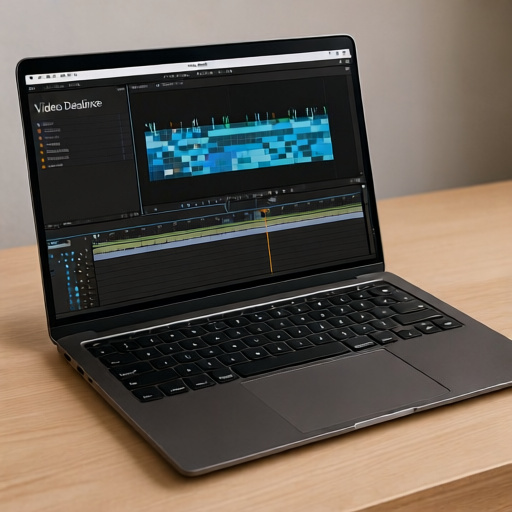
A video editing laptop represents a significant investment, and ensuring its sustained peak performance is crucial for a smooth workflow and longevity. Proactive maintenance and optimization aren’t just beneficial; they’re essential for maximizing the potential of your hardware and avoiding frustrating slowdowns during critical projects. This section explores key strategies for keeping your video editing laptop running efficiently over time.
One of the foundational aspects of maintaining a powerful video editing machine is managing storage. Video files are notoriously large, and a full or fragmented drive can dramatically impact performance. Regularly freeing up space is a simple yet effective step. Consider utilizing cloud storage services for archiving completed projects or less frequently accessed files. Additionally, ensure your primary drive has ample free space – a general guideline is to maintain at least 15-20% free capacity. Furthermore, defragmenting your hard drive (though less relevant for Solid State Drives or SSDs) can improve read and write speeds. Modern operating systems often handle SSD optimization automatically, but it’s worth checking the manufacturer’s recommendations.
Beyond storage, keeping your operating system and drivers up to date is paramount. Software updates frequently include performance enhancements and bug fixes that can directly benefit video editing tasks. Operating system updates often contain optimizations for hardware compatibility and resource management. Driver updates, particularly for your graphics card, are equally vital. Graphics card drivers are specifically designed to work with video editing software, and keeping them current ensures optimal rendering speeds and stability. Regularly checking for updates through your operating system’s update manager and the graphics card manufacturer’s website (NVIDIA, AMD, or Intel) is a best practice.
Thermal management plays a critical role in sustained performance. Video editing is a demanding task that generates significant heat. Overheating can lead to performance throttling, where the laptop reduces its clock speed to prevent damage. This results in noticeable slowdowns and can hinder rendering times. Regularly cleaning the laptop’s cooling vents from dust and debris is a simple preventative measure. Consider using a laptop cooling pad to supplement the built-in cooling system, especially during long editing sessions. Monitoring your laptop’s temperature using monitoring software can also help identify potential overheating issues before they become problematic.
Software optimization is another key area. Video editing software itself often has performance settings that can be adjusted. Learning to utilize these settings effectively can significantly improve your workflow. For example, adjusting playback resolution during editing can free up resources, and optimizing proxy settings can make editing smoother with higher-resolution footage. Furthermore, it’s wise to regularly review and remove unnecessary software and background processes. These can consume system resources and contribute to slowdowns. Utilities like Task Manager (Windows) or Activity Monitor (macOS) can help identify resource-intensive applications.
Finally, consider the physical handling of your laptop. Avoid placing it on soft surfaces like beds or blankets, which can block airflow and trap heat. A hard, flat surface allows for proper ventilation. Investing in a sturdy laptop stand can also improve ergonomics and airflow. By implementing these maintenance and optimization practices, video editors can ensure their laptops continue to deliver optimal performance for years to come, extending the lifespan of their valuable investment.